Vibe at Speed
Experience the vibe of coding without code. Build full-stack applications at speed through design documents and AI collaboration. This guide covers Speed apps, development workflows, and deployment — everything you need to go from idea to production quickly.
Speed App
Speed apps are mini-applications that run natively on the Speed platform, delivering full-stack capabilities without the complexity of traditional development. Speed provides a complete ecosystem — for example, when authentication is needed, apps can only use Speed platform login. This means end users don't need to configure each app separately and can simply use their existing Speed platform account, significantly reducing barriers to usage.
Modern Web Apps
Speed apps deliver contemporary web experiences that meet modern aesthetic and interaction standards. They are automatically responsive to mobile devices and include built-in CDN for smooth global access.
Backend & Integration
Speed apps can implement any custom business logic, store data, and call third-party APIs. Additionally, we currently provide seamless third-party service integration including:
- Speed Auth: Built-in authentication system with user management and session handling
- Object Storage: Secure file upload, storage, and CDN delivery
- LLM Integration: Direct access to language models for AI-powered features
Based on the Speed account ecosystem, these integrations require zero configuration and costs are automatically handled by end users by default.
Self-Sustaining
For developers, Speed apps can run forever with zero maintenance and no hosting costs. When apps use paid features like object storage or LLM calls, end users pay by default — this is seamlessly achieved through our platform's account ecosystem. Developers can also choose to absorb the costs themselves to offer free experiences to users.
Use cases
- Sending and receiving from IM: Integrate with instant messaging platforms like Telegram, Discord, and Line via webhooks to send and receive messages
Development
Development on Speed is fundamentally different from traditional coding. Instead of writing code, you work with design documents and collaborate with AI to build your application through natural language interactions.
🌍 Language Support
You can use any language to send instructions to AI or write design documents. Feel free to communicate in your preferred language for the most natural experience.
Getting Started
Starting a new application on Speed is straightforward and intuitive:
- In the application list, click the "New App" button
- In the dialog that appears, describe your application's functionality in as much detail as possible. The more specific you are about features, user interactions, and business logic, the better Speed can understand your vision. You can also attach screenshots, or upload an existing project as a zip to migrate it to Speed
- Submit your description and Speed will generate a comprehensive design document (Design Doc) based on it
- Review the generated design document carefully. You can edit it directly or use the conversation interface to ask AI to help you refine and improve it
- Once you're satisfied with the design document, open the dropdown next to "Edit", choose "Build from Scratch", then click "Start Development" to begin building your first version
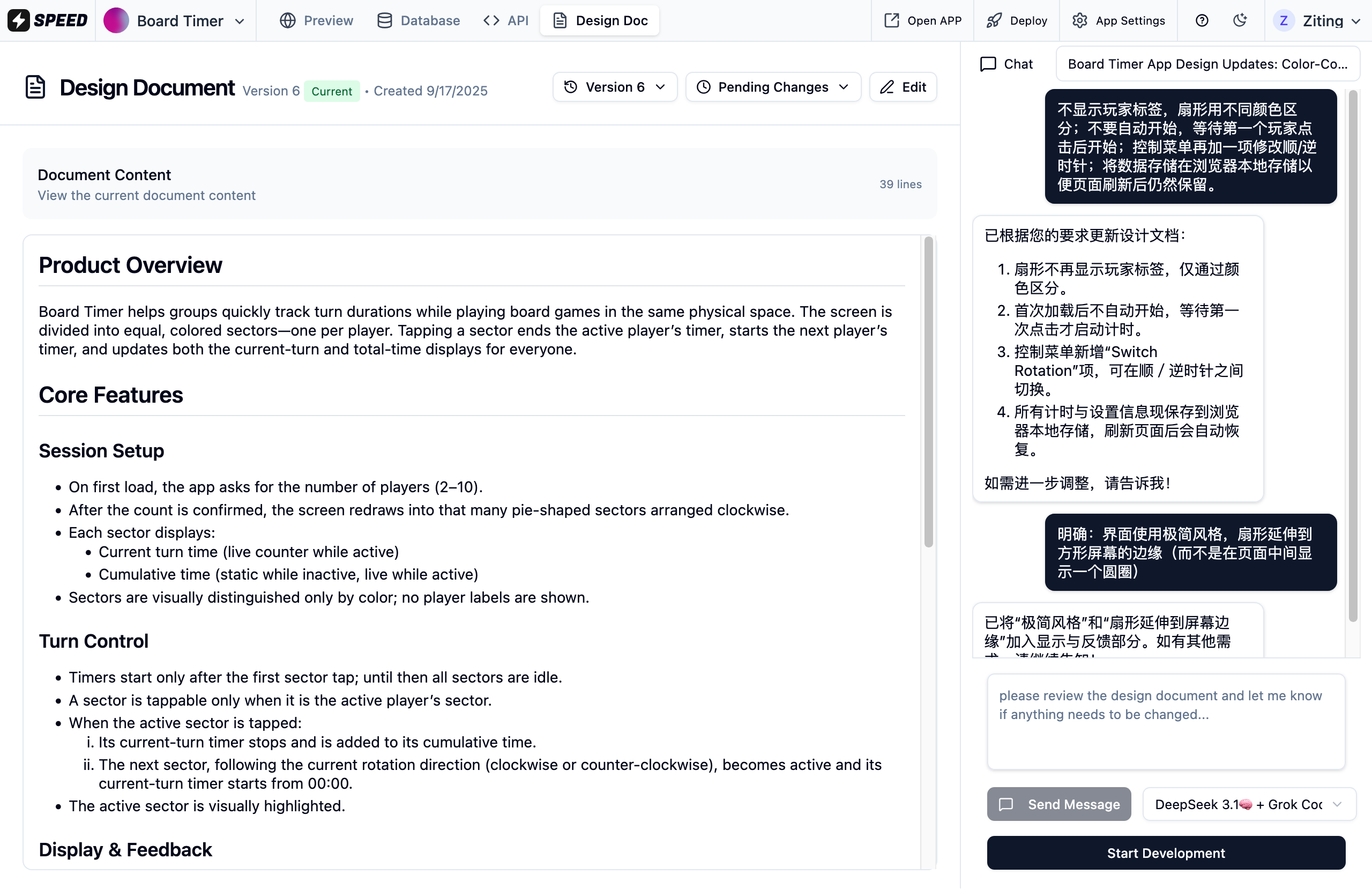
Generated design document interface for review and editing
💡 Writing Your Initial Description
The quality of your initial description directly impacts the design document. Include details about user types, main features, expected workflows, and any specific requirements or constraints you have in mind. Don't try to specify everything upfront. Start with core functionality and iteratively add features, improvements, and refinements based on what you see in the live preview.
Monitoring AI Work
Once development begins, you can observe AI's progress in real-time:
- Live Session (Right Side): Monitor AI's current plan, see what tasks it's working on, and track overall progress toward your goals
- Live Preview (Left Side): Watch your application come to life as AI implements features. You can interact with the app and see changes appear in real-time
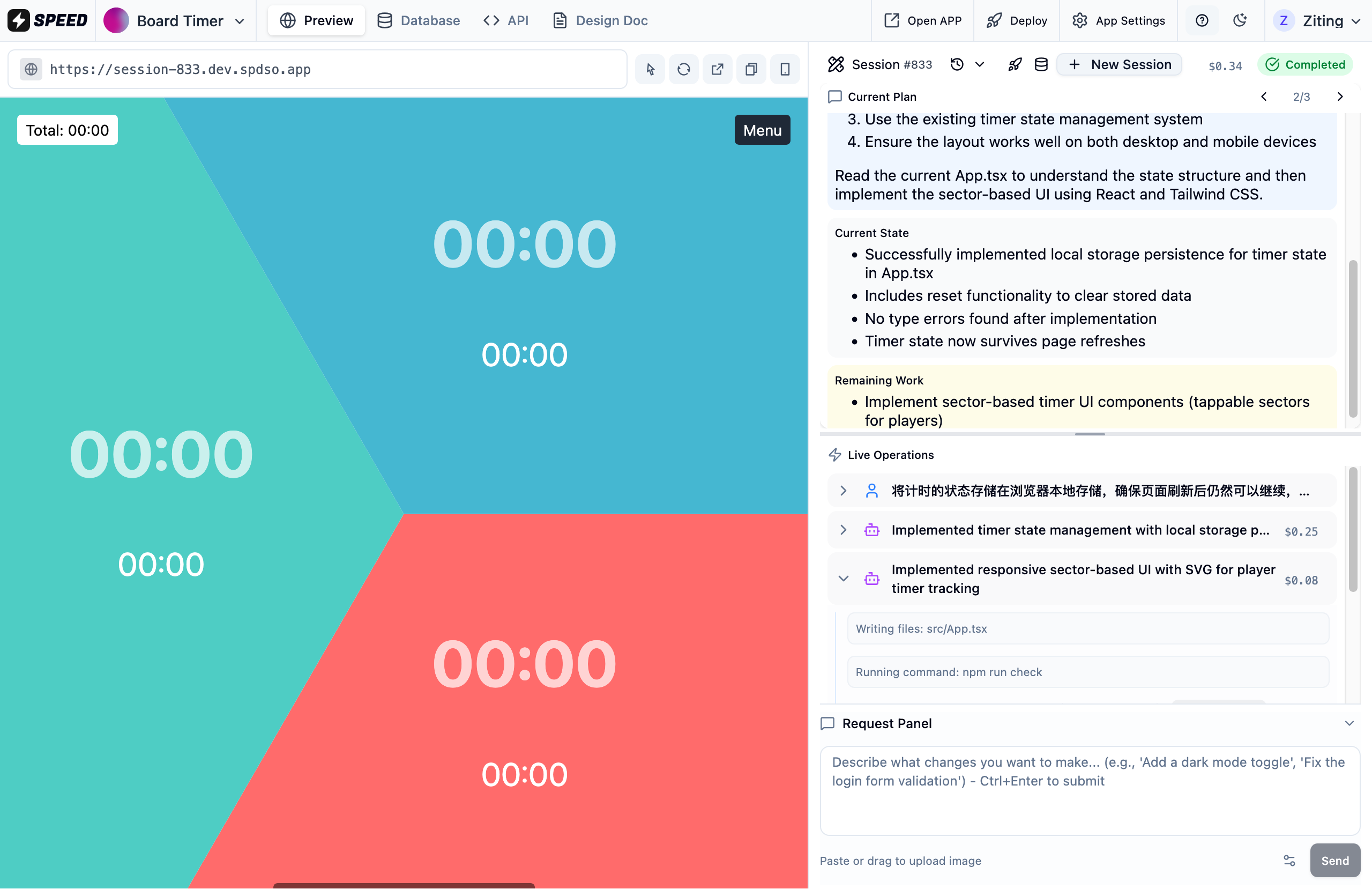
Live Session panel showing AI's current tasks and progress
🤖 Real-Time Development
AI works transparently, showing you exactly what it's planning and doing. You can see code being written, features being implemented, and your app taking shape step by step.
Updating Your Design
After completing the initial development, you can open the Design page at any time to manually modify the Design Doc or have AI assist you with modifications. Once you've finished making changes, send a request in the Live Session panel to have AI implement your updated design.
Iterating Your Application
Development on Speed is an iterative process where you continuously refine and enhance your application:
- Checkpoint Results: When AI completes development and produces a checkpoint, you can provide new requirements or point out issues that need fixing
- Real-Time Instructions: Even while AI is working, you can send new instructions at any time. These will be automatically incorporated into AI's plan for later execution
- Current Session Context: Continue working within the current session to build upon existing context and progress
- New Sessions: Click "New Session"anytime to start fresh work on a different aspect of your application
Deploying Your Application
When you're satisfied with your application's current state, deployment is just one click away:
- Deploy to Production: Click the rocket button in the top tab bar, next to Build, Design, API, Database and Access, to deploy the current version to the production environment
- Instant Availability: Your application becomes immediately available to users with its own production URL
- Continue Development: After deployment, you can continue iterating and deploy new versions as needed
Troubleshooting
Common issues and solutions when working with Speed applications.
Recovering from Errors
AI may stop working for various reasons, such as AI outputting abnormal results, AI output timeout, Speed internal failures, etc. Feel free to click the Re-run or Retry button to recover from errors. After clicking, AI will re-plan from the current interrupted progress and continue to complete the previous work.
Production Data and Schema Issues
If you encounter data or database schema problems in production:
- Solution: Create a new Session and in the advanced options, select "Production" from the "Copy Data From" dropdown. This allows AI to copy data from the production environment and attempt to resolve data and database structure related issues.
Deployment
Speed simplifies deployment through an integrated checkpoint and database system that ensures safe, reliable application updates.
You can deploy the result (checkpoint) of a Session to the production environment.
Rollback
Click the rocket button and then "View History" to open the Deployments list, where you can review every deployment to production and roll back to any previously deployed version at any time.
Deployment Options
The following options are available for unexpected circumstances:
Drop Database & Reset Data
⚠️ Warning: Offered in the deploy dialog, this option permanently deletes all data in the production database and recreates it from scratch. Only use for unexpected circumstances where a complete reset is intended.
Skip Migrations
When you roll back or redeploy a checkpoint from the Deployments list, you can turn on Skip Migrations to deploy without running database migrations. This option should only be used in unexpected cases where you're certain no database changes are required. Drop Database is available there as well.
Data Management
Speed provides a robust database system with complete separation between development and production environments:
Production Database
Speed maintains a completely independent production database. When deploying new versions, AI writes and executes database migrations to safely update the production schema and data.
Development Database
Every session gets its own development database. A new session copies the data of the previous session by default, so your test data carries over as you iterate. In the advanced options of a new session you can copy from Production instead, or start with no data at all.
Database Access
Developers can view and edit database data through a web interface: click the Database button in the top tab bar, then switch between Session and Production to inspect the current session's development database or the production one.